
WhatsApp Node
Create and edit WhatsApp templates directly in Journey Builder.
Overview
The WhatsApp action node enables you to send WhatsApp messages to users as they move through a journey. The WhatsApp Action node sends a message to contacts using a Meta-approved template. This node allows you to:
- Select an approved template, or create a new one.
- Edit a template (approved or rejected) without leaving the journey.
- Track live Meta approval status (Approved, Pending, Rejected) for the selected template.
- Test the message before activating the journey.
Video Tutorial
Good to KnowThe WhatsApp Action node supports inline template creation, editing and node-level testing, allowing you to validate content without leaving the Journey Builder canvas.
To get started, Drag & drop the WhatsApp action node on the Journey canvas. Click the WhatsApp node to set the conditions.
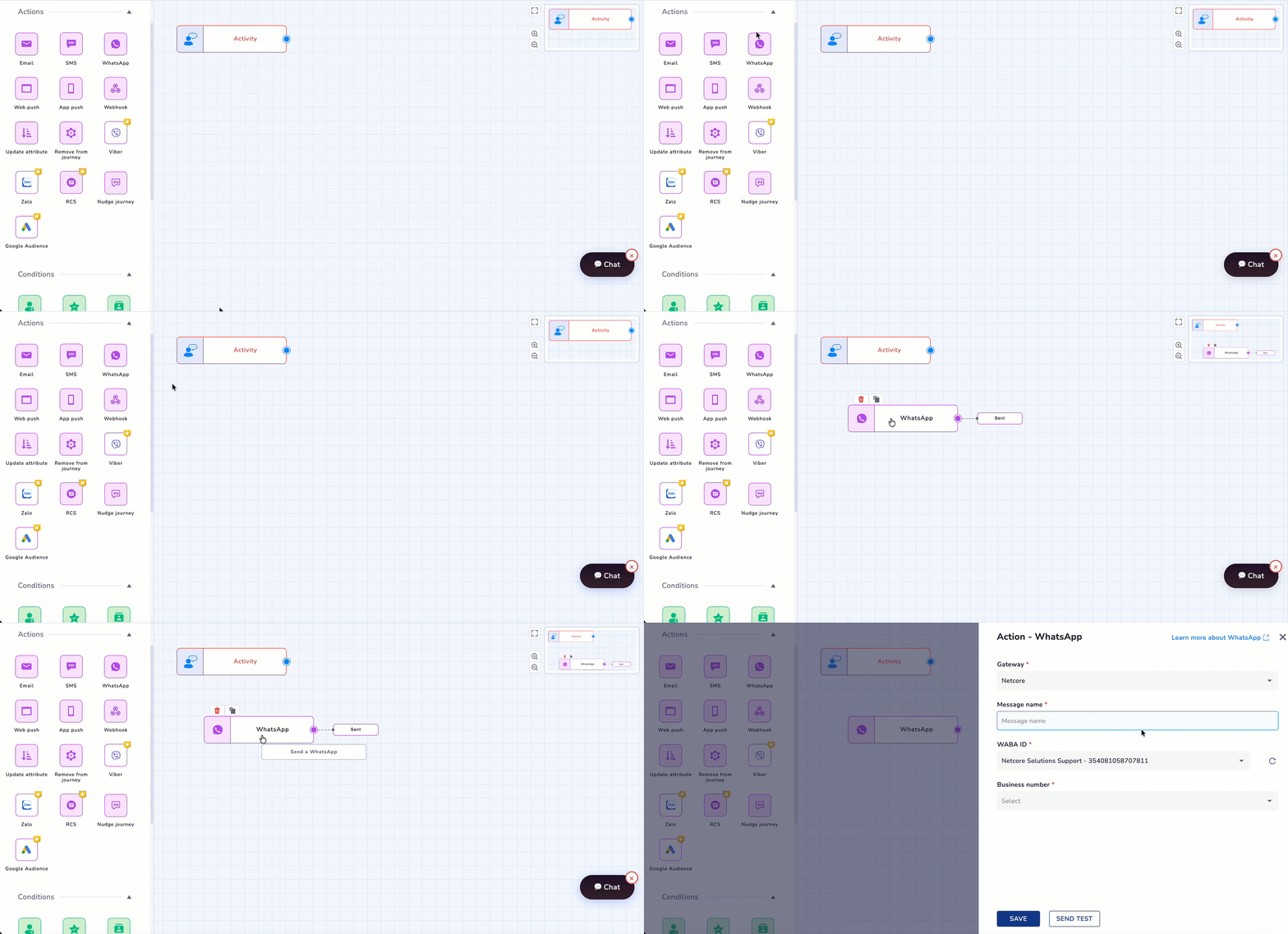
Adding WhatsApp node on the Journey canvas
PrerequisitesBefore configuring this node, ensure the following are set up in your Netcore CE account:
- A WABA (WhatsApp Business Account) is connected under Account Settings.
- The WhatsApp template you want to send has been created and is Approved by Meta.
- Templates that are Pending or Rejected can be selected but cannot be tested or used to activate the journey.
| Status | Edit | Send Test | Journey Activation |
|---|---|---|---|
| Approved | Allowed (sends template back to Pending) | Enabled | Allowed |
| Pending | Not allowed | Disabled | Blocked |
| Rejected | Allowed | Disabled | Blocked |
The Action- WhatsApp screen appears. Refer to the table for the fields available here.
| Fields | Description |
|---|---|
| Gateway | Select the messaging gateway from the dropdown. |
| Message name | Provide an identifier for the WhatsApp message. |
| Business number | Specify the sender’s WhatsApp business number. |
| Template Selection | Select the WhatsApp template you created from the dropdown. You can preview or edit the template for this node. |
| Preview Template | It opens a preview of the selected template. WhatsApp layout and content can be reviewed. You can also edit the template you are previewing directly in this flow. |
| Edit Template | It opens the template editor, allowing you to modify the template directly from the node configuration. Refer here for editing your template. |
| Link tracking | Must be enabled on the Netcore CPaaS platform for link-level tracking to work on this node. |
| Retry failed messages | When enabled, failed WhatsApp messages are automatically retried using AI-optimized scheduling. Retries don't add extra cost to the campaign. Not recommended for time-bound or TTL-constrained campaigns. |
| Google Analytics tracking | GA tracking for WhatsApp sends through the Netcore gateway. Configure the link tracking to enable GA tracking for WhatsApp. |
| SAVE | Use this to save the configuration of the Email node. |
| SEND TEST MESSAGE | Click on SEND TEST MESSAGE to test the email node templates with personalization. |
Important Point to RememberSEND TEST is disabled for templates that are Pending or Rejected. Only an Approved template can be tested or used to activate the journey.
Edit an Existing Template
You can edit an existing template from the WhatsApp Node of your Journey. Follow the steps below to do so:
- On the Action-WhatsApp tab, select the template from the drop-down. Select the edit option as below.
Important Points to Remember
- When a WhatsApp template already in use in active journeys or campaigns is edited, the system displays an impact warning message.
- Any changes made to an Approved template send it back to Meta for re-review, and the template moves to Pending status. You cannot test or use this template to activate a journey until it is approved again.
- Editing an Approved template is limited to once every 24 hours.
- A Rejected template can be edited and resubmitted at any time, but cannot be tested or used to activate a journey until it is approved.
- A Pending template cannot be edited. Wait for the approval decision, or use the refresh icon next to the template status to check for an update.
Editing Options
| Option | Description |
|---|---|
| Duplicate & Edit | Creates a copy of the template and opens it in the editor. Changes apply only to the duplicated template and do not affect existing journeys or campaigns. The new template is automatically selected for the current node. |
| Edit | Opens the existing template in the editor. Any changes made will affect all journeys or campaigns that use this template and will require Meta re-approval. |
Create New Template from Journey
You can create a new WhatsApp template directly from the node. Follow the steps below to do so.
- From the drop-down, select the + Create new option. The template editor opens in a new browser tab, using the same layout as the Templates library.
- Create the template as per your requirements and submit it for Meta's approval.
- Return to the Journey Builder tab. Your created template is automatically selected in the Template field of the WhatsApp node, and a status message appears confirming the template is pending approval.
Note
- A newly created template must be Approved by Meta before it can be tested or used to activate the journey.
- Editing an existing template will affect all other journeys or campaigns that use the same template.
Send Test Message
You can also directly test your templates from the Journey WhatsApp node flow.
The SEND TEST option allows you to choose test recipients manually, use preset test contacts, or reuse recent test profiles. Configure the test numbers from the account configuration.
Click here to know more about WhatsApp Send Test from the Journey node.
Limitations and Behaviors
- A manually entered mobile number is only usable for testing if that number exists in both your account configuration's Test Contacts section and your contact master. If it's missing from either, the test will not send for that number.
A WhatsApp test send behaves exactly like a live campaign send. There is no placeholder data. The message pulls actual data for the recipient, including catalog entries, recommendations, and any mapped events or attributes. If a personalization source is not found or mapped, the test fails the same way a real send would.
If a payload attribute resolves to an empty value, the send fails because Meta rejects messages with empty values. Live campaigns apply a default fallback value in this case. Test sends do not currently have this fallback, so a test can fail even where the equivalent live campaign would send successfully.
Test messages sent from the WhatsApp node are billable, in line with WhatsApp's messaging charges, and are included in your account's billing usage log alongside regular campaign sends. In your downloaded campaign report, test sends are distinguished from live campaign sends within the same CSV. Test sends do not appear in journey or campaign performance dashboards.
Frequently Asked Questions
Q. Can I use the same WhatsApp template in multiple journey nodes?
A: Yes. The same template can be reused across different journey nodes and different journeys. Changes to the template will reflect in all journeys using it.
Q. Can I test a template that's Pending or Rejected?
A: No. Send Test is only enabled for templates that are Approved.
Q. What happens if I edit a template that is already used in active journeys?
A: Any changes made will reflect across all journeys and campaigns using that template once re-approved. A warning message is shown before applying changes.
Q. Does editing an Approved template require re-approval?
A: Yes. Any edit to an Approved template sends it back to Meta for review and moves it to Pending status. This is limited to once every 24 hours.
Q. Can I use placeholder or dummy data for a test?
A: No. Tests always use real, live data for the recipient, including catalog and personalization data. There's no placeholder mode.
Q. Are WhatsApp test messages billed?
A: Yes. Every test send is billable and logged in your billing usage log the same way as a live send.
Q. My test failed even though the same setup works in a live campaign. Why?
A: This usually happens when a payload attribute is empty. Live campaigns apply a default fallback value in this case; test sends currently do not.
Updated 25 days ago