
Leadsquared
Import LeadSquared contacts into Netcore CE to trigger segments and journeys based on CRM lead activity.
Overview
LeadSquared is a marketing automation and CRM platform used to capture, nurture, and manage leads across the sales pipeline. The LeadSquared integration brings your LeadSquared contacts and their attributes into Netcore CE, so your marketing team can act on lead-stage changes without depending on a manual data pull.
This integration is import-only: LeadSquared contact data flows into Netcore CE. It does not export Netcore CE engagement data back into LeadSquared.
Integration Benefits
- Zero-code profile sync: LeadSquared attribute changes reflect in Netcore CE contact profiles automatically. No manual CSV uploads or batch jobs.
- Attribute-driven segmentation: Build segments in Netcore CE on synced LeadSquared attributes, such as lead stage or lead score.
- Personalization depth: Every synced attribute becomes available as a personalization token in Email, SMS, and WhatsApp messages.
- Journey trigger readiness: Use "attribute changed" triggers in Journey Builder on synced attributes, with no additional integration work.
- Channel reachability: Keeping phone and email attributes current reduces hard bounces and undelivered messages.
Use Cases
Refer to the tables below to see how this integration is used across the industries that rely on it most.
EdTech
| What Changes in LeadSquared | What Gets Synced to Netcore | What Customer Configures in Netcore |
|---|---|---|
| New lead created (form fill) | New contact with name, email, phone, course interest, source | Segment: lead_source = "website" → journey trigger on contact creation: Welcome WhatsApp + counselor intro |
| Lead status → "Hot" | lead_status attribute updated to "Hot" | Segment entry trigger: lead_status changed to "Hot" → high-intent nurture journey with fee details, deadline urgency |
| Lead score increases to 80+ | lead_score attribute updated | Segment: lead_score >= 80 → priority engagement journey (scholarship info, call-back scheduling) |
| Phone number updated | mobile attribute updated | Ensures SMS/WhatsApp journeys reach the correct number, no manual list hygiene needed |
| Lead status → "Enrolled" | lead_status updated to "Enrolled" | Segment exit from acquisition journeys; segment entry into onboarding journey |
| Counselor assigned/changed | lead_owner attribute updated | Personalization token in messages: "Hi name, your counselor lead_owner will call you shortly" |
BFSI
| What Changes in LeadSquared | What Gets Synced to Netcore | What Customer Configures in Netcore |
|---|---|---|
| New lead (loan/insurance inquiry) | Contact created with product type, income bracket, city | Segment: product_interest = "home_loan" → instant acknowledgment journey + document checklist |
| Lead status → "Documents Pending" | lead_status updated | Attribute-change trigger → document reminder drip (Email D+0, WhatsApp D+1, SMS D+3) |
| Lead status → "KYC Verified" | lead_status updated | Segment entry → congratulations + next-steps journey (disbursement timeline, EMI calculator) |
| Lead score drops (inactivity) | lead_score decremented | Segment: lead_score < 30 AND lead_status != "Converted" → re-engagement offer journey |
| Email updated | email attribute updated | Critical for OTP delivery, policy documents, and regulatory communications reaching the right inbox |
| Preferred language updated | language attribute updated | Journey personalization: content blocks switch to Hindi/regional language templates automatically |
| DND/opt-out flag set | dnd_status attribute updated | Netcore suppression logic: contact excluded from promotional campaigns immediately |
Real Estate
| What Changes in LeadSquared | What Gets Synced to Netcore | What Customer Configures in Netcore |
|---|---|---|
| New lead (portal inquiry) | Contact created with project interest, budget range, city | Segment: project_interest = "ProjectX" → brochure + site visit booking journey |
| Lead status → "Site Visit Scheduled" | lead_status updated | Segment entry → pre-visit reminder journey (D-1 SMS with map link, D-0 WhatsApp) |
| Lead status → "Site Visit Done" | lead_status updated | Trigger follow-up journey: pricing sheet, payment plan, finance partner intro |
| Lead score increases (repeated inquiries) | lead_score updated | Segment: lead_score >= 70 → exclusive/pre-launch pricing email from senior sales |
| Budget range updated | budget attribute updated | Dynamic content: show relevant inventory matching updated budget in subsequent emails |
| Co-applicant email added | New attribute (e.g., co_applicant_email) synced | Include in joint communications (loan eligibility, document checklist for both) |
| Lead status → "Booked" | lead_status updated | Exit acquisition journeys; enter post-booking journey (construction updates, possession timeline) |
| Lead status → "Lost" | lead_status updated | Enter win-back segment (trigger after 30-day wait with new inventory/price drops) |
Connect LeadSquared to Netcore CE
Follow the steps given below to connect your Leadsquared account with the Netcore CE dashboard.
- Log in to the Netcore CE dashboard and navigate to Settings > Integrations.
- Open the Catalog tab, then go to CRM > Leadsquared.
- Click ADD INTEGRATION. The Leadsquared integration modal opens on the Setup step.
Step 1: Setup
- Under Basic details, enter a Connection name.
- Under LeadSquared details, Netcore CE generates a URL and an X-API key. Click COPY next to each; you'll add these to a webhook in your LeadSquared account in a later step.
- Click NEXT.
Step 2: API Authentication
- Enter the API key, Secret key, and Host, all sourced from your LeadSquared account.
- Click NEXT.
Step 3: Data Mapping
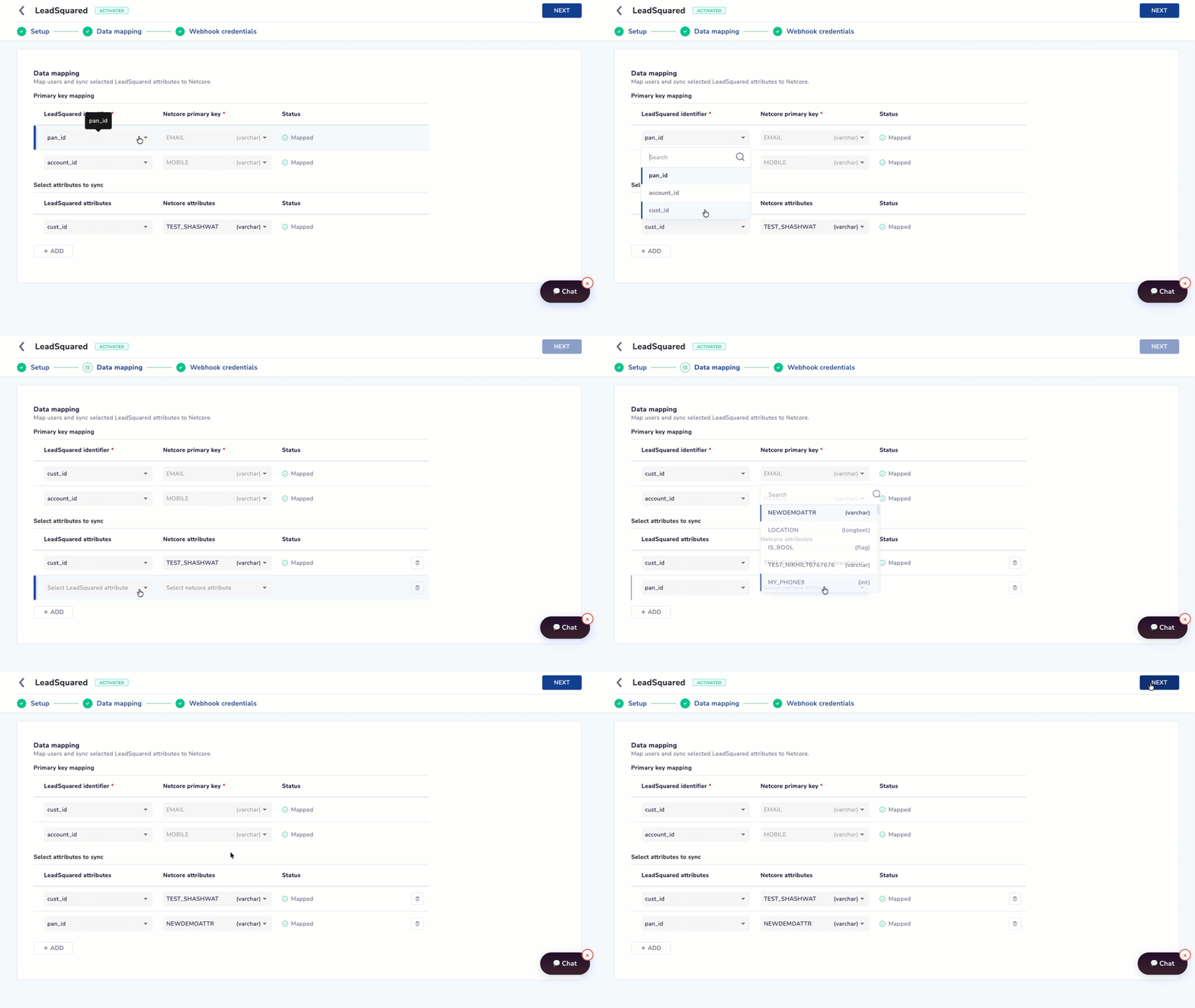
Map Users & Sync selected LeadSquared attributes to Netcore
- Under Required mapping, map your LeadSquared identifier field (for example, EMAIL_ID) to the corresponding Netcore attribute.
- Under Additional mapping, map any further LeadSquared attributes (for example, LEAD_STAGE, LEAD_NAME) to Netcore attributes. Click + ADD to map more.
- Click ACTIVATE.
Configure the Webhook in LeadSquared
LeadSquared doesn't have a native Netcore connector on its side. Instead, you connect the two platforms through a Workflow Automation rule in LeadSquared that sends contact data to the URL and X-API key generated in Setup.
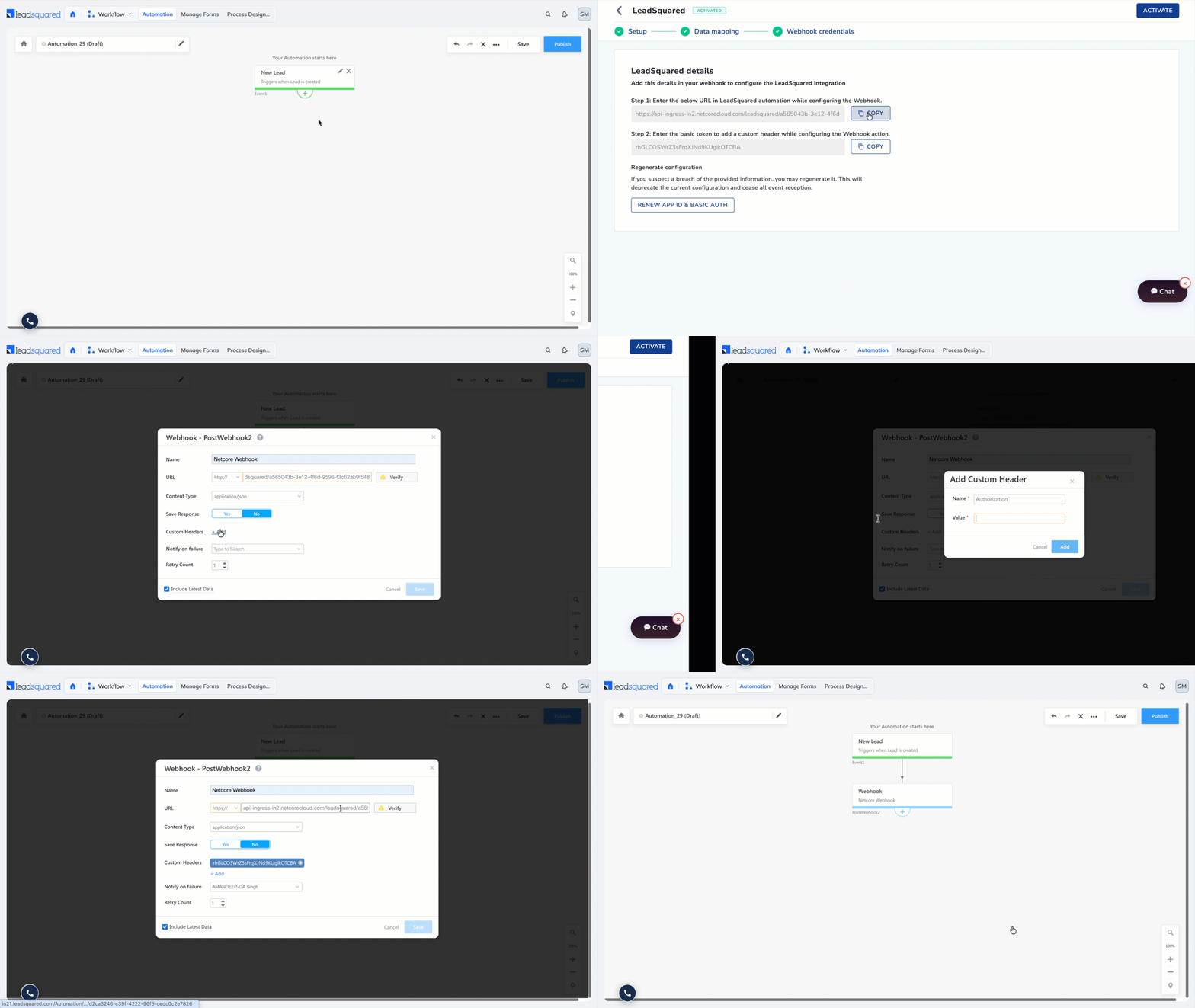
Configure the Webhook in LeadSquared
-
In your LeadSquared account, go to Automation > Workflow, and click Create Automation.
-
Select Build from Scratch.
-
Select a trigger only from the Contact trigger category (for example, New Contact Added to List).
WarningLeadSquared's automation triggers also list Opportunity, Activity, User, and Task categories. This integration only supports Contact triggers. Selecting any other trigger type will cause the connection to fail.
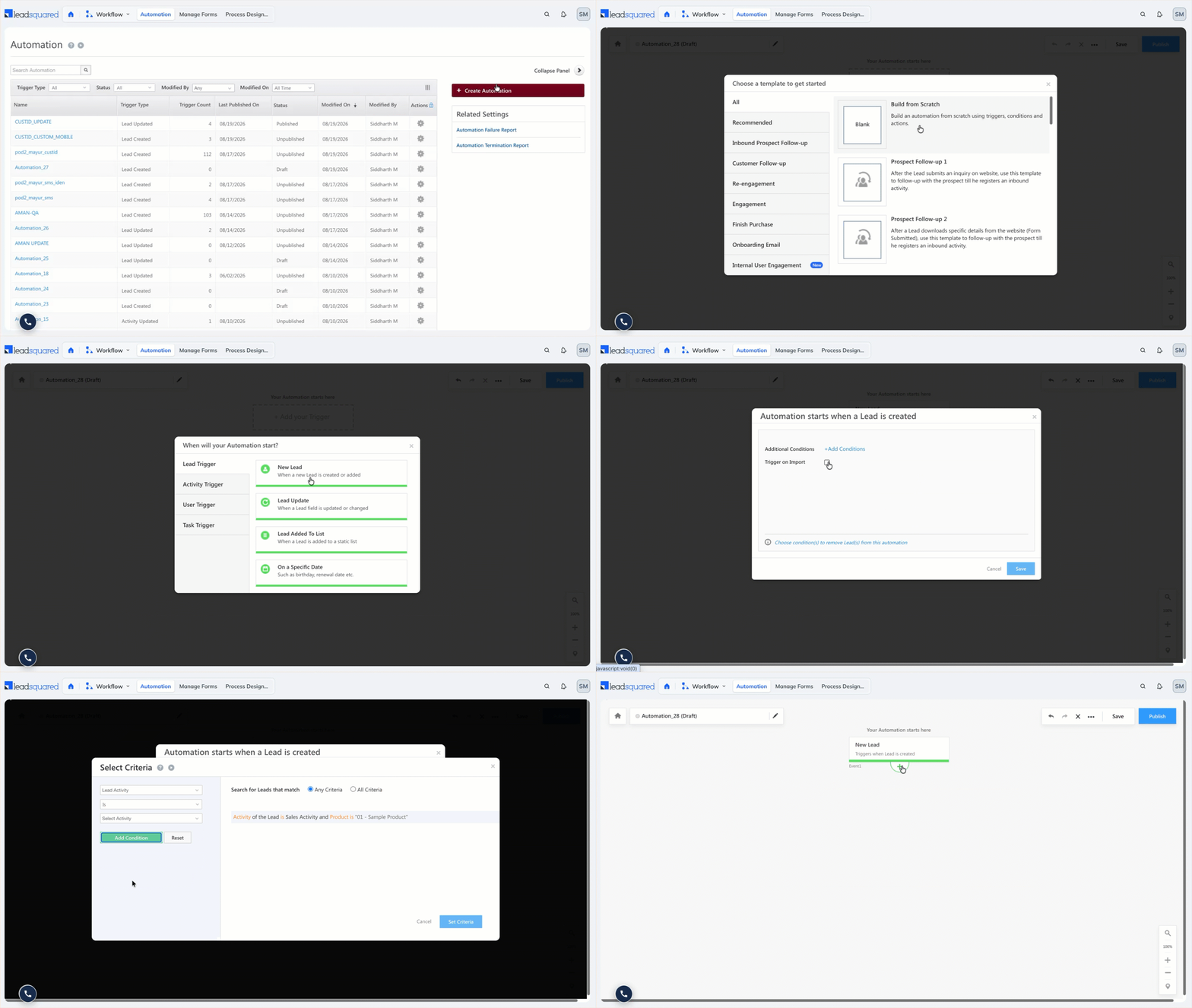
Create a Lead on LeadSquared
-
Add a Custom Webhook action to the automation.
-
In the webhook configuration:
- Paste the URL (from Setup) into the webhook's URL field.
- Add the X-API key (from Setup) as a custom header.
-
Save and activate the automation in LeadSquared.
What This Integration Doesn't Do
- It doesn't trigger campaigns directly. It keeps Netcore CE profiles updated. You still define segments and build journeys using the synced attributes.
- It only imports Contacts. Opportunities, activities, and other LeadSquared objects aren't supported in this release.
- It's import-only. Netcore CE engagement data isn't sent back to LeadSquared.
Updated about 2 months ago