
Product Set: Merchandising in App Push
Learn how to Deliver Price Drop, Back in Stock, Stock Running Out, and New Arrival alerts using App Push Notifications
Overview
Merchandising Event is a new source under Product Set, alongside Recommendation, Collection, and Product Feed. It lets you send App Push Notifications using products that qualify through your existing Merchandising Trigger engine, the same engine that already powers merchandising use cases in Email and WhatsApp.
This brings Product Set support to merchandising use cases in App Push:
- Price Drop
- Back in Stock
- Stock Running Out
- New Arrival
Merchandising Event reuses your existing merchandising trigger setup, your Product Set infrastructure, and your Product Catalog Integration (PCI) and derived attribute data. You do not need to reconfigure anything at the trigger or catalog level to use it.
PrerequisitesBefore you create a Merchandising Event Product Set template, ensure the following is done:
- A merchandising trigger is already configured for your panel. Setup remains same, refer to Merchandising Triggers if you have not configured one yet.
- Panel's Product Catalog Integration (PCI) sync is active and running.
Important Points to Remember
Merchandising Event supports 1 to 5 products per notification.
All four existing merchandising triggers are supported: Price Drop, Back in Stock, Stock Running Out, and New Arrival.
Merchandising Event Workflow
- The Product Catalog Integration (PCI) syncs catalog data on an ongoing basis.
- If a relevant change is detected, for example, a price drop or a restock.
- The Merchandising Trigger that is already configured evaluates whether that change matches its conditions.
- If it matches, the system identifies the eligible user and product relationship for that trigger.
- The Journey containing this Product Set template executes for that user.
- Then finally App Push renders the qualifying product using the snapshot captured at trigger time.
Template Setup
- Log in to your Netcore CE panel and navigate to: Content > App Push.
- Configure the App Push Template details. Refer here to set up a new App Push template.
- Select the layout as Product Set and refer here to customise the Product Set template.
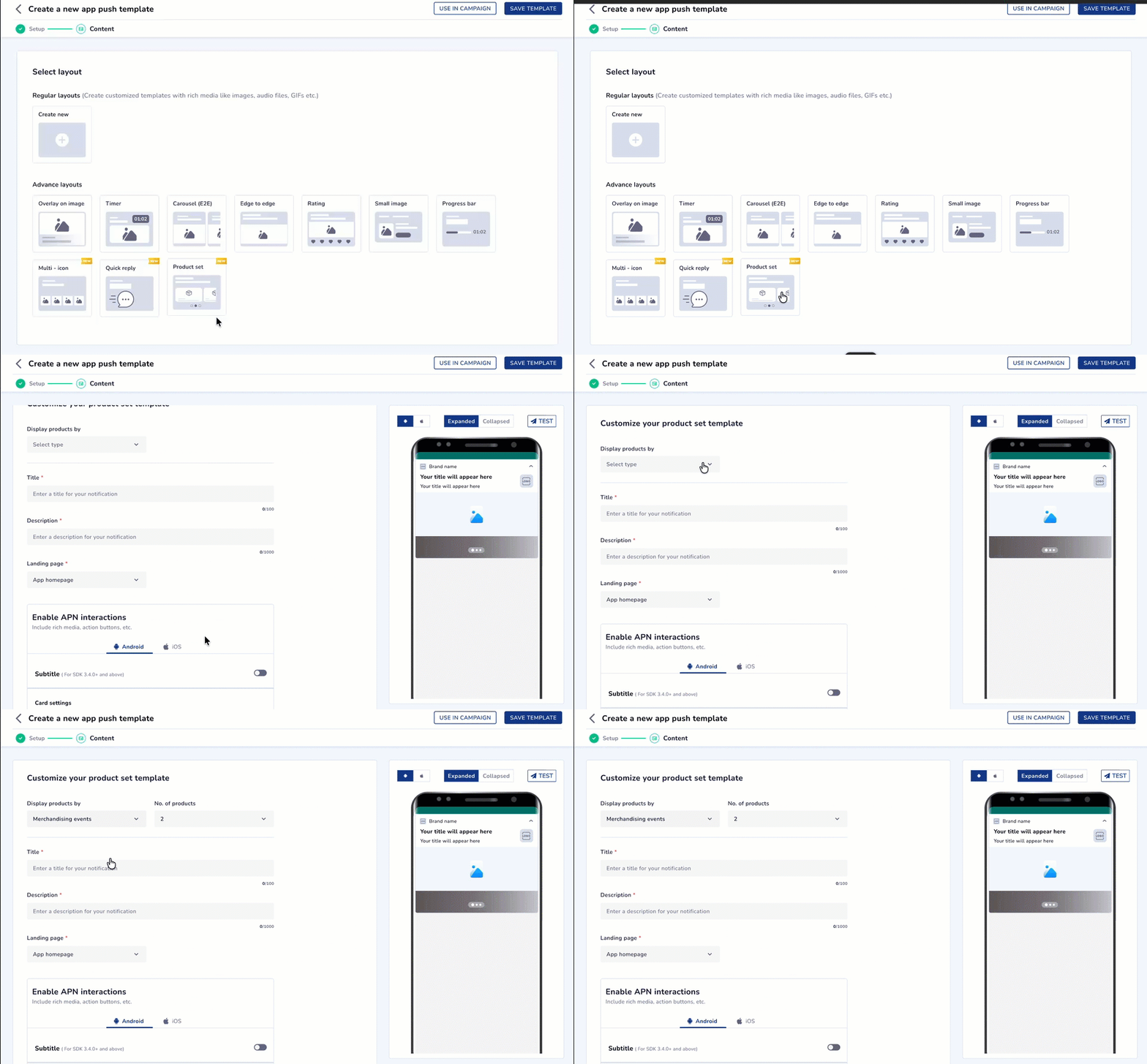
Setting up Merchandising Event in Product Set Layout
Customise Product Set Template
Refer to the table below to understand the Merchandising Event configurations:
| Column Name | Description |
|---|---|
| Display product by | Select Merchandising Event from the source list, alongside Recommendation, Collection, and Product Feed. |
| Merchandising trigger | Select the trigger this template should respond to: Price Drop, Back in Stock, Stock Running Out, or New Arrival. |
| No. of products | Select the number of products to render, from 1 to 5. |
| Title | Add the title of your push notification. Supports bold, italics, underline, text color, and background color. |
| Description | Add the message content of your push notification. |
| Landing page | Choose where the notification takes the user on tap: Deeplink, URL, or App landing page. |
Product Resolution and Snapshot Behavior
When a merchandising trigger fires, products are resolved using Product Catalog Integration (PCI) incremental sync, comparing the old catalog state against the new one. The system selects the latest N qualifying products, where N is the number you selected in No. of products. No ranking logic is applied.
At the moment the trigger executes, the system captures a snapshot of:
- Product ID
- Product predefined attributes
- Product derived attributes
- Trigger type
- Trigger timestamp
No re-evaluation happens after the trigger resolves, even if catalog data changes before the notification is delivered.
Product order is determined entirely by the Merchandising Engine. The App Push SDK renders products in the order it receives them and does not reorder, sort, or otherwise modify the sequence.
Product Validation
A product is valid only if it has an Image URL. The following do not invalidate a product, missing values are simply left blank and the product still renders:
- Title
- Description
- Retail price
- Sales price
- Derived attributes
- Deeplink URL
- Card URL
Example: If you request 5 products and 2 of them are missing an image, only the 3 valid products render, in their original merchandising order.
If zero products pass validation, the system retries via the existing server retry mechanism. If the retry also fails, the notification is dropped.Merch Attribute Support
Personalization Support
Two new personalization groups are available for Merchandising Event templates.
Product Predefined Attributes include:
- Product Title
- Product Description
- Image URL
- Brand
- Category
- Retail Price
- Sales Price
Product Derived Attributes include:
- Previous Availability
- Previous Condition
- Discount Amount
- Discount Percentage
- Retail Price Difference
- Previous Retail Price
- Retail Price Difference in Percentage
- Quantity Difference
- Quantity Difference in Percentage
- Previous Quantity
- Sales Price Difference
- Previous Sales Price
- Sales Price Difference Percentage
Use Cases
Price Drop Alert via App Push
As an e-commerce marketer, you want to notify users automatically when a product they have shown interest in drops in price, without building a separate campaign each time.
| Use Case | Suggested Configuration | Outcome |
|---|---|---|
| Price Drop Alert using Merchandising Event |
| Users are notified the moment a tracked product drops in price, with no manual campaign setup required. The notification reflects live discount data captured at trigger time. |
Updated about 2 hours ago