
Exit Conditions in Journeys
Set Exit Conditions in Netcore Journeys to remove users automatically once they meet an event, attribute, or segment rule.
Overview
Exit Conditions remove users from a journey as soon as they meet a rule you set. Use them to stop messages that no longer make sense.
For example: A user who buys a product does not need a cart reminder. A user who completes KYC does not need a KYC nudge.
Without Exit Conditions, you add check-and-wait steps at many points in the journey. That adds nodes, takes more effort, and raises the risk of setup mistakes. With Exit Conditions, you define the rule once in the journey settings. Netcore applies it to the whole journey.
Exit Conditions help you:
- Stop irrelevant messages after a user converts.
- Keep journeys short and easy to read.
- Reduce unsubscribes, opt-outs, and app uninstalls.
- Stop discounts for users who no longer qualify, such as repeat buyers.
Prerequisites
Check these points before you set up Exit Conditions:
- You have permission to create or edit journeys.
- The events and user attributes you want to use already exist in your account.
- The events reach Netcore on time. Exit Conditions can only act on data that Netcore has received.
You set Exit Conditions in the journey settings panel. The panel title reads Create journey. Exit Conditions sit between Journey goal and Control group.
Use cases
| Use case | Journey | Exit condition | Result |
|---|---|---|---|
| Cart abandonment | A user leaves a MacBook in the cart. The journey sends reminders. | Users who did Order Purchased greater than or equal to 1 | The user buys the product and leaves the journey. No more reminders go out. |
| KYC onboarding | A user enters a journey that reminds them to finish KYC. | KYC_Status is Verified | The user completes KYC and leaves the reminder journey. |
| Subscription win-back | A user enters a renewal journey after the plan lapses. | Users who Did Subscription_Renewed greater than or equal to 1, OR Customer_Status is Active | The user renews or becomes active again. Win-back nudges stop. |
| New buyer nurture | A journey offers discounts to push first purchases. | Users who Did Purchase greater than 3 | After more than three purchases, the user no longer counts as a new buyer. The discounts stop. This protects your margin. |
| Fatigue control | A profile completion journey shows a banner again and again. | Users who Did Dismiss_Banner greater than 5 | A user who dismisses the banner more than five times leaves the journey. This lowers the risk of opt-outs and uninstalls. |
How Exit Conditions work
Netcore checks the conditions while users move through the journey.
- A user enters the journey and moves through its steps.
- Netcore checks the Exit Conditions before each message goes out. It also checks them when the user leaves certain nodes. The nodes depend on the journey trigger:
- Activity trigger: Netcore checks when the user leaves the trigger node, a wait condition, or a wait for event node.
- Segment or list trigger: Netcore checks when the user leaves a wait condition or a wait for event node.
- If the user meets a condition, Netcore moves the user to the Exited state. The user receives no more messages from this journey.
- If the user meets no condition, the user continues to the next step.
Netcore looks at events from the time the user enters the journey. The maximum lookback period is 30 days.
NoteIf the exit condition is a segment, users may still receive messages for up to 30 minutes after they meet the condition. Segments refresh every 30 minutes.
If a check fails
Sometimes Netcore cannot finish a check. In that case, Netcore holds the user and tries again several times. The user does not move to the next step and does not receive a message until the check succeeds. This protects users from messages they should not get.
Set up Exit Conditions
Follow these steps to add an exit rule to a journey.
- Log in to the Netcore CE dashboard and open your journey in the journey builder.
- Open the Journey settings panel.
- Turn on the Exit Conditions toggle. The description reads: Force remove users as soon as they fulfil any of the conditions defined below.
- Click + ADD CONDITIONS. A list opens with a search box.
- Pick what you want to check. Use the tabs to narrow the list: All, Behaviour, User Attribute, and Contacts. The Recently used section shows your latest picks. Click Show all to see every option.
- Set the rule. For an event, the row reads Users who > Did > event name > operator > number. For example: Users who Did Purchase greater than or equal to 1.
- Optional: add a payload filter to narrow the event. See the section Filter an event by its payload.
- Optional: click + ADD CONDITIONS again to add more rules. You can add up to 5 conditions. See the section Combine conditions.
- Click SAVE and publish the journey. Exit Conditions apply once the journey is live.
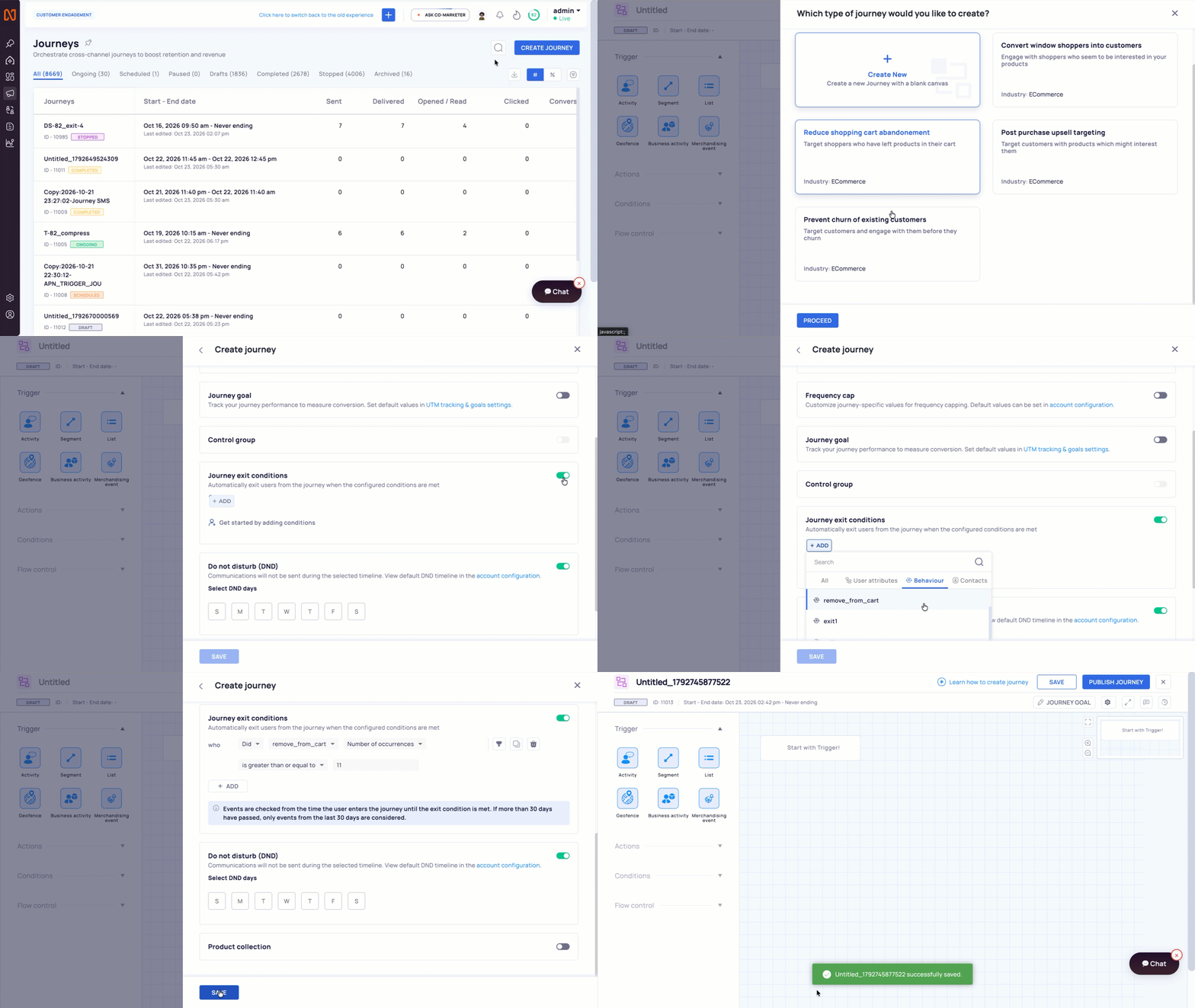
Set up Exit Criteria in Journeys
To remove a condition, click the delete icon at the end of its row.
Filter an event by its payload
A payload filter checks a property that comes with the event. Use it when the event alone is too broad.
- In the event row, click the filter icon. A new Where row appears.
- Select the event property, such as Price.
- Keep Value selected to compare the property value.
- Select an operator, such as is greater than.
- Enter the value, such as 1000.
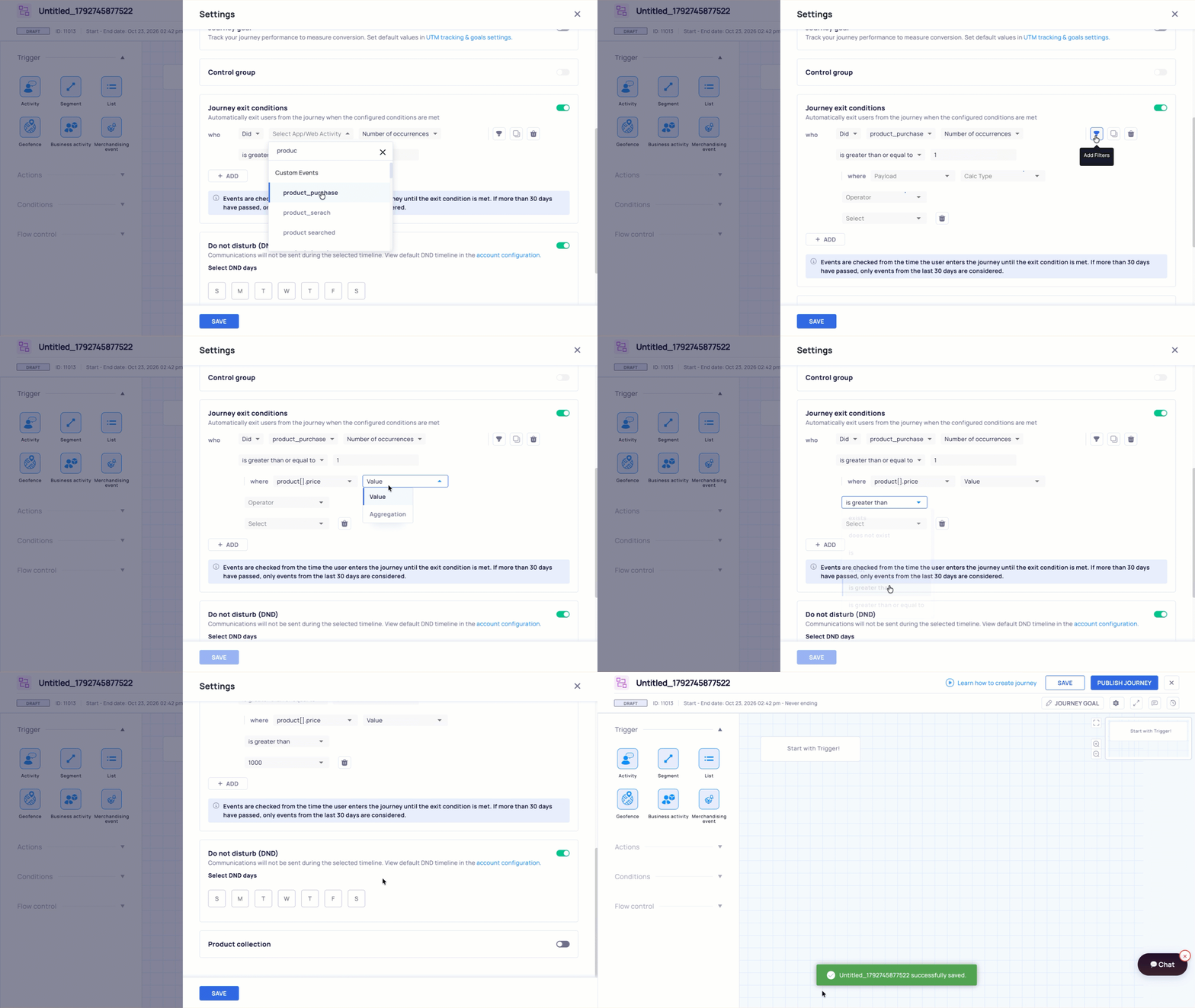
Filter Event by Payload
Combine conditions
You add many conditions to one Exit Conditions block. The block holds a maximum of 5 conditions. Use AND or OR to link them.
- AND: the user must meet every condition.
- OR: the user must meet at least one condition.
Condition types
Exit Conditions work with four kinds of rules.
| Type | Where you find it | What Netcore checks | Example |
|---|---|---|---|
| Event | Behaviour tab | Whether the user did an event, and how many times | Users who Did Order Purchased greater than or equal to 1 |
| User attribute | User Attribute tab | A value on the user profile | KYC_Status is Verified |
| Contacts | Contacts tab | Whether the user belongs to a segment or a list | User is in the Unsubscribed segment |
| Event payload | Filter icon on an event row | A property sent with the event | Price is greater than 10,000 |
Event count
Set how many times the user must do an event. Choose an operator and a number. These examples show the idea:
- Purchase count is greater than 3.
- Dismiss_Banner count is greater than 5.
- Feature_Used count is greater than or equal to 10.
Count rules suit lifecycle moves and fatigue control. Netcore counts events from the time the user enters the journey. The maximum lookback period is 30 days.
Segments and lists
Segments and lists do not refresh in real time. When you pick a segment, a yellow banner tells you that Netcore may evaluate the condition with a delay of up to 30 minutes.
View exit results
Open the Journey Performance page and go to the Overall tab. The Exits section shows how many users left the journey because of Exit Conditions.
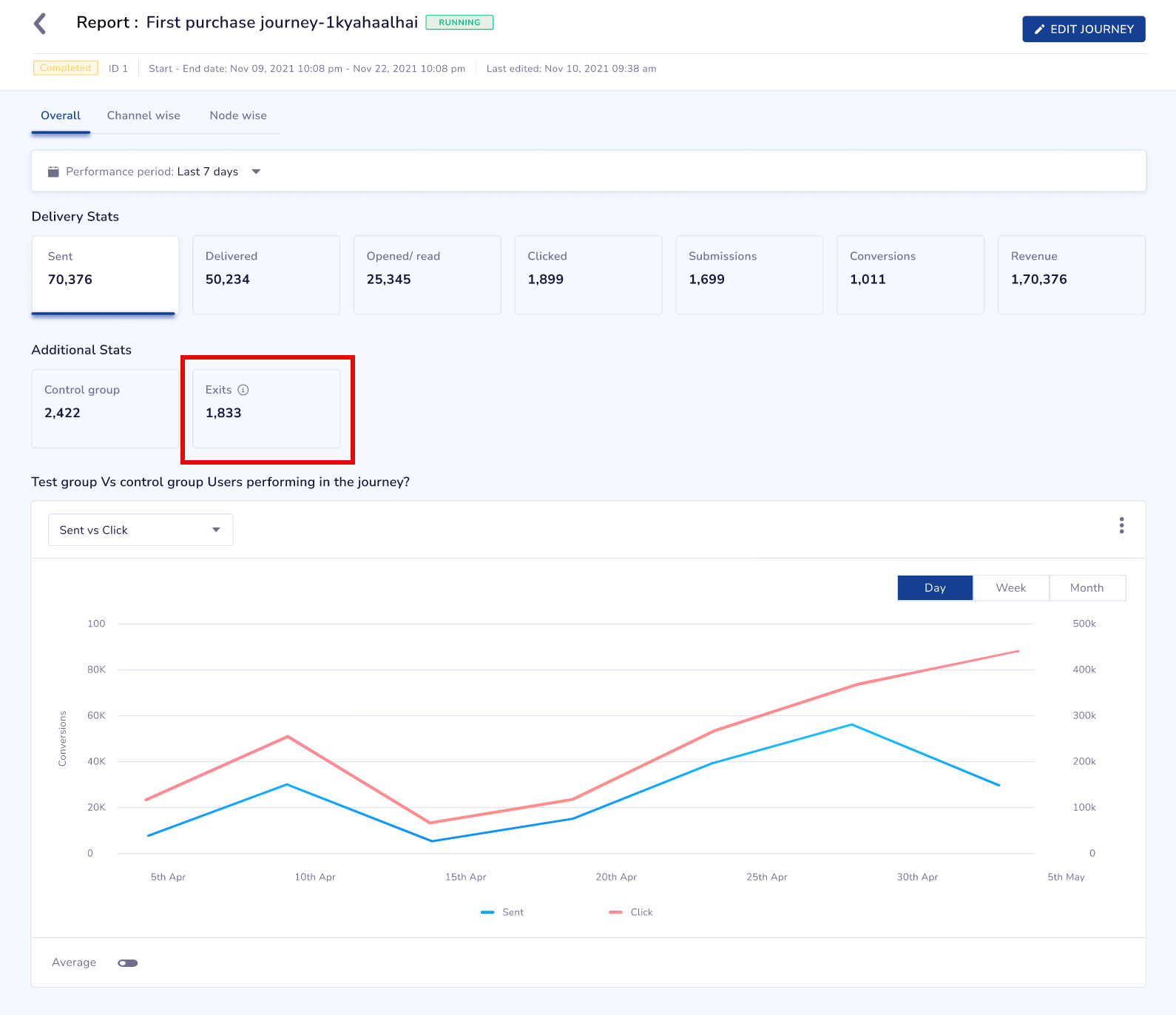
Important Points to Remember
- Each journey has one Exit Conditions block. The block holds up to 5 conditions.
- Exit Conditions apply to the whole journey. They do not replace the Remove from Journey action.
- A journey cannot use the same event as its trigger and as an exit condition.
- Netcore does not match event details between the trigger event and the exit event. Netcore checks the exit event on its own. For example, a user adds a MacBook and socks to the cart, and this starts the journey. The exit condition is any purchase. The user buys only the socks. Netcore counts this as a purchase, so the user exits and stops getting reminders about the MacBook. Matching by product is not available yet.
- Some Segment filters do not appear in Exit Conditions yet. These include Number of visits, Number of occurrences in a visit, system parameters such as Platform, OS, and Browser, and Last known location.
- The Exits section shows total exits only. Counts per wait step and per condition are not available yet.
Troubleshooting
| Problem | Why it happens | What to do |
|---|---|---|
| Error: {Event} event is already used as a trigger activity. Trigger activity and exit condition cannot be the same. | The journey trigger and an exit condition use the same event. | Remove the event from the exit conditions, or pick a different event. |
| You cannot save the journey. | A condition has an empty field, such as the operator or the value. | Fill in every field in each condition row, then click SAVE. |
| A user still receives a message after meeting a condition. | The condition uses a segment or a list. These refresh with a delay. The event may also reach Netcore late. | Prefer events and attributes for time-sensitive exits. Check that your events reach Netcore on time. |
| A user does not exit. | The event happened before the user entered the journey, or more than 30 days ago. It may also not match your payload filter. | Check the event date and the payload values for that user. |
| An option you expect is missing from the list. | Netcore does not support that option in Exit Conditions yet. | See the Important Points to Remember section for the options that do not appear. |
FAQs
Q. Can I add more than one Exit Conditions block to a journey?
A. No. A journey has one block. The block holds many conditions. You can add a maximum of 5 exit conditions.
Q. Can I nest AND and OR groups?
A. No. Netcore does not support nested groups such as (A AND B) OR (C AND D). Use a flat list of conditions with AND or OR.
Q. When does Netcore check the conditions?
A. Netcore checks them before each message goes out. It also checks them when a user leaves certain nodes. The nodes depend on the journey trigger. For an activity trigger, the check happens when the user leaves the trigger node, a wait condition, or a wait for event node. For a segment or list trigger, the check happens when the user leaves a wait condition or a wait for event node.
Q. How far back does Netcore look for events?
A. Netcore looks at events from the time the user enters the journey. The maximum lookback period is 30 days.
Q. Can a user get a message after they meet a condition?
A. Netcore checks the conditions before each send, so this is rare. Segment and list conditions can lag by up to 30 minutes.
Q. What happens to a user who exits?
A. The user exits the journey. If the journey trigger configuration allows users to enter again, the user enters the journey again when they qualify for the trigger condition again.
Q. What happens if Netcore cannot check a condition?
A. Netcore holds the user and retries. The user waits until the check succeeds.
Q. Where do I see how many users exited?
A. Open Journey Performance, go to the Overall tab, and look at the Exits section.
Updated about 23 hours ago