
Import Contacts from Databricks to Netcore
Import Databricks contact data to power targeted campaigns and journeys in Netcore CE.
Overview
A Contacts import moves contact records from a Databricks table or view into Netcore CE. You choose the Databricks connection, catalog, schema, and table. You map the table columns to Netcore CE attributes. You then run the import once or on a recurring schedule.
| Item | Detail |
|---|---|
| Source | Databricks |
| Destination | Netcore CE contact master, and optionally one or more lists |
| Location in Netcore CE | Settings > Data transfer > Import |
| Wizard | Databricks contact import, with Setup, Data mapping, and Schedule steps |
| Required identity mapping | EMAIL (Primary key) and Updated on |
| Attributes mapping | Yes |
| Schedule options | One-time or Recurring |
Pre-requisites
- An active Databricks connection of type Import in Netcore CE. See Databricks.
- Read access to the Databricks catalog, schema, and table or view you want to import from.
- At least one email address to receive import alerts.
- The Netcore CE list that you want to add contacts to, if any.
Refer to this document to know the steps to start a Contacts Import.
The Databricks contact import wizard opens. Click FINISH LATER at any point to save your progress.
Step 1: Setup
The Import details section asks for the basic details of your import.
| Field name | Description |
|---|---|
| Import title | A unique name for this import. Up to 80 characters. |
| Connection | Select an existing Databricks connection that you created under Integrations. |
| Path | Select the path for the import. This field stays disabled until you select a connection. |
| Catalog | Select the Databricks catalog to import from. |
| Schema | Select the schema within the selected catalog. |
| Table | Select the table or view to import contacts from. |
| Type of contacts | Choose Identified or Anonymous. Identified is the default. |
| Import contact to list(s) | Optional. Netcore CE adds contacts to the contact master by default. You can also add them to one or more lists. |
| Alert email | Required. Select the email addresses that receive alerts about this import. |
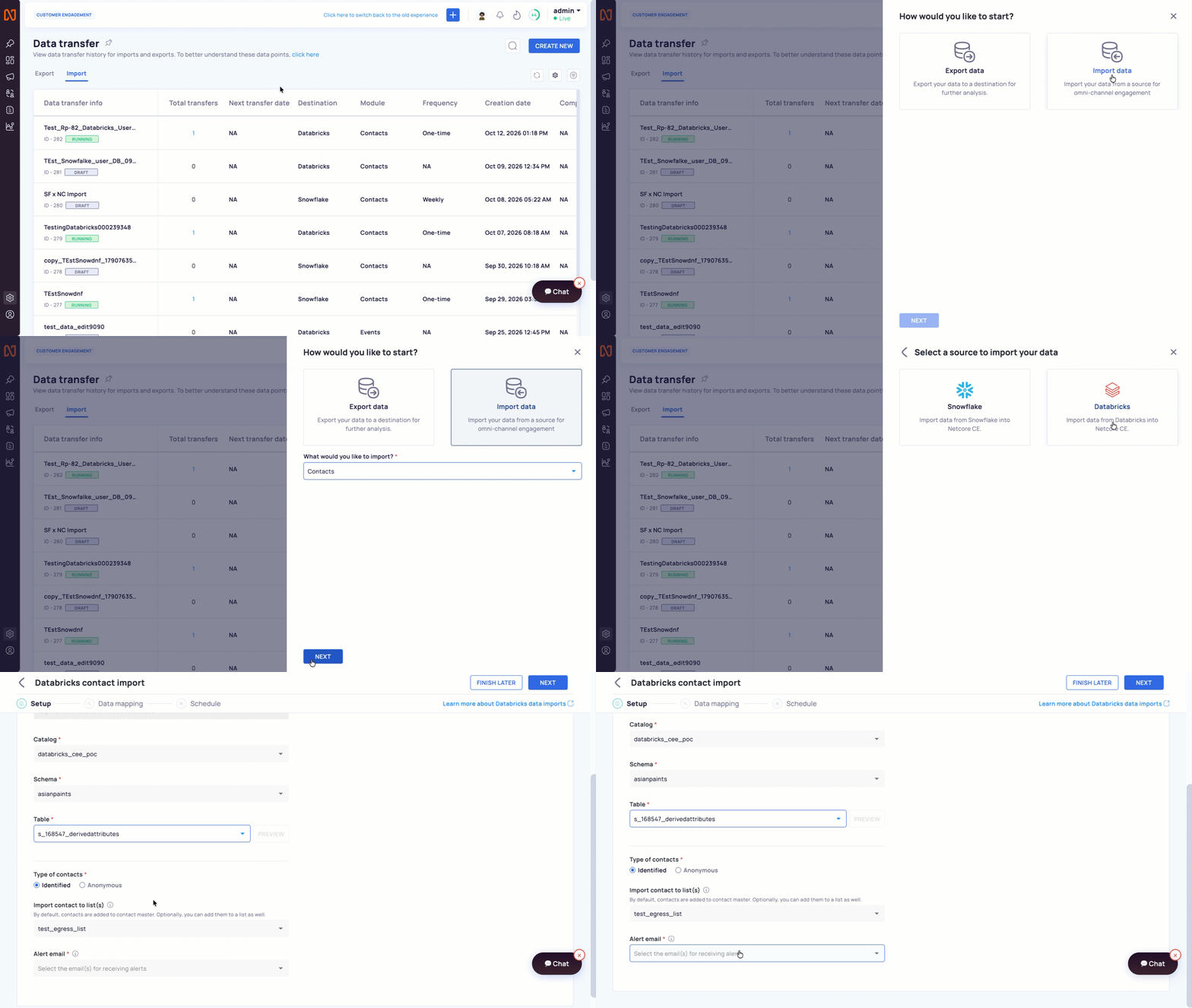
Set up Databricks Contact Import
Each field after Connection stays disabled until you complete the field above it.
After you select a table, click PREVIEW to see a few sample records. Use the preview to confirm that you picked the right table. Then click NEXT. Netcore CE saves your setup details.
Step 2: Data Mapping
This step maps the columns of your Databricks table to Netcore CE. A Contacts import has two sections: Identity mapping and Attributes mapping.
Identity Mapping
Identity mapping tells Netcore CE which Databricks column to use to match and update contact records.
| Netcore attribute | Requirement |
|---|---|
| EMAIL (Primary key) | Required. Map it to the Databricks column that uniquely identifies each contact. |
| Updated on | Required. Map it to the Databricks column that stores when a record was last updated. |
Click + ADD to add more identity mapping rows.
When you map Updated on, a date-time format dropdown appears. The available formats include:
YYYY-MM-DDYYYY/MM/DDDD/MM/YYYYDD-MM-YYYYDD-MM-YYYY hh:mm:ssYYYY-MM-dd HH:mm:ss.SSS XX
Attributes Mapping
Netcore CE shows a note: "We have detected [N] columns in your table." The count excludes the columns that Identity mapping uses. For each detected column, Netcore CE shows:
| Column | Description |
|---|---|
| Column name (Databricks) | The source column name, for example CITY. |
| Data type | The Databricks data type, for example INT, STRING, or TIMESTAMP. |
| Netcore attributes | A searchable dropdown of existing attributes with compatible data types. |
| Sample data | An example value from the previewed table. |
| Transformation | For timestamp columns, a Select date time format dropdown. |
| Skip column | A checkbox that excludes the column from this import. |
Use Skip all to check or clear every Skip column checkbox at once. To create an attribute without leaving the screen, open the Netcore attributes dropdown and select + Create attribute.
Create a New Netcore Attribute
If no existing Netcore CE attribute matches a column, open the Netcore attributes dropdown and select + Create attribute. You create the attribute without leaving this screen.
ValidationYou must map every detected column to a Netcore attribute or mark it as Skip column. If a column stays unresolved, clicking NEXT shows the error "Please map or skip the columns you don't wish to import." Resolve every row before you continue.
Click NEXT to move to Schedule. Netcore CE saves your attribute mapping at this point.
Step 3: Schedule
The page shows your account timezone and the current date and time. Select one of two options:
| Option | Behavior | Fields |
|---|---|---|
| One-time | Netcore CE transfers the complete dataset once. It performs no incremental transfer. | Scheduled at |
| Recurring | The first run transfers the complete dataset. Later runs transfer incremental data. | Start date time, End date time, Frequency (for example Every hour or Weekly) |
Error Handling
| Error message | Cause |
|---|---|
| "Please select a date-time format for 'Updated on'." | The Updated on mapping has no date time format, or its column is not a timestamp. Select a format. |
| "Please map or skip the columns you don't wish to import." | A detected column is neither mapped nor marked Skip column. Resolve every row. |
Related Pages
Updated about 1 hour ago