
Import Events from Databricks to Netcore
Import Databricks event data to power targeted campaigns and journeys in Netcore CE.
Overview
An Events import moves event records, such as Add To Cart, from a Databricks table or view into Netcore CE. You choose the Databricks connection, catalog, schema, and table. You select the event, its source, and the app. You map the identity columns. You then run the import once or on a recurring schedule.
| Item | Detail |
|---|---|
| Source | Databricks |
| Destination | Netcore CE, as event records for your contacts |
| Location in Netcore CE | Settings > Data transfer > Import |
| Required identity mapping | EMAIL (Primary key) and Event time |
| Attributes mapping | No. Events has Identity mapping only. |
| Schedule options | One-time or Recurring |
| Multiple event types in one table | Supported. Select the column that contains the event name. |
Pre-requisites
- An active Databricks connection of type Import in Netcore CE. See Databricks.
- Read access to the Databricks catalog, schema, and table or view that holds your events.
- At least one email address to receive import alerts.
- The event name, the event source, and the app name that the imported events belong to.
Refer to this document to learn the steps to start an Events Import.
Step 1: Setup
The Import details section asks for the basic details of your import.
| Field name | Description |
|---|---|
| Import title | A unique name for this import. Up to 80 characters. |
| Connection | Select an existing Databricks connection that you created under Integrations. |
| Path | Select the path for the import. This field stays disabled until you select a connection. |
| Catalog | Select the Databricks catalog to import from. |
| Schema | Select the schema within the selected catalog. |
| Table | Select the table or view to import events from. |
| Event | Select the event that the imported rows represent, for example Add To Cart. |
| Source of event | Select where the event comes from, for example App. |
| App name | Select the app that the event belongs to. |
| Alert email | Required. Select the email addresses that receive alerts about this import. |
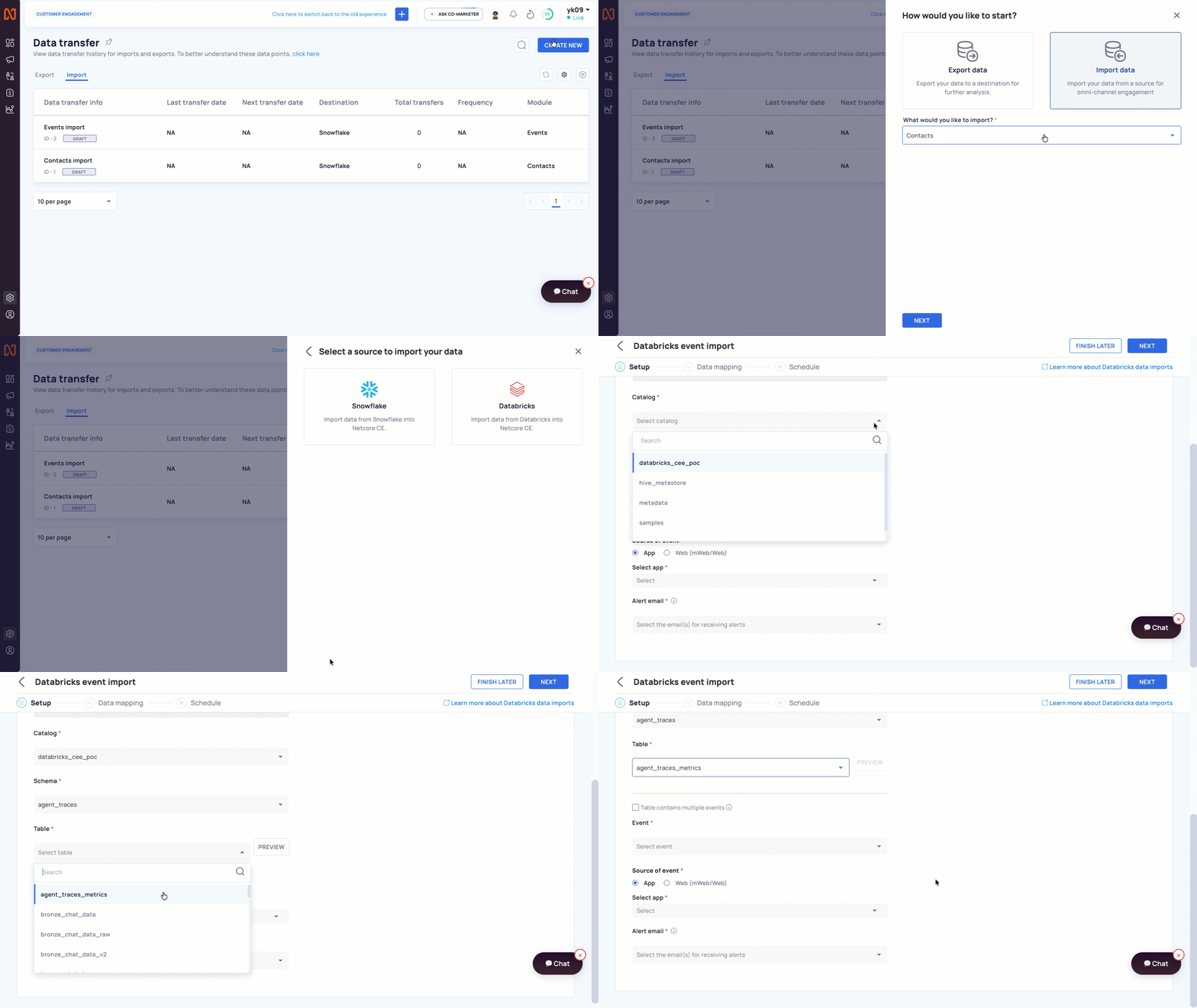
Databricks Event Import
Each field after Connection stays disabled until you complete the field above it. A Contacts import does not have the Event, Source of event, and App name fields.
After you select a table, click PREVIEW to see a few sample records. Then click NEXT. Netcore CE saves your setup details.
Import a Table That Contains Multiple Events
After you select a table, the Table contains multiple events checkbox appears. Select it when a single Databricks table stores more than one event type. An information icon next to the checkbox shows this hint: "Use this when a single table stores multiple event types. Select the column that contains the event name."
- Select the Table contains multiple events checkbox. A Column name dropdown appears.
- In the Column name dropdown, select the column that contains the event name. The placeholder reads "Select column name containing event."
| Field | Description |
|---|---|
| Table contains multiple events | A checkbox. Select it when one table stores multiple event types. |
| Column name | Required when you select the checkbox. Select the column that contains the event name. |
If you select the checkbox and leave Column name empty, Netcore CE outlines the dropdown in red and shows the error "Column name is required." Select a column to continue.
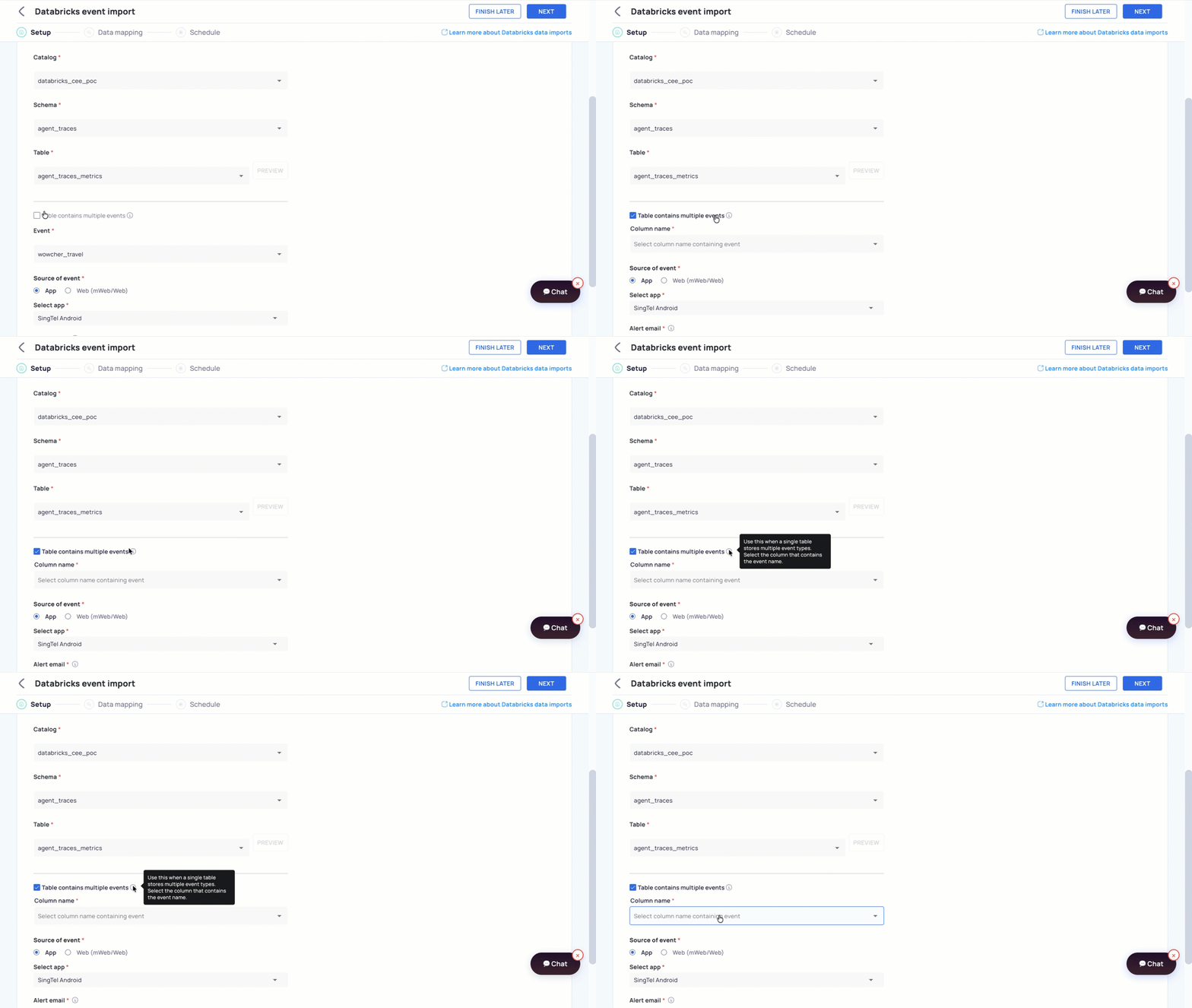
Import a Table That Contains Multiple Events
After you complete the Setup fields, click NEXT.
Step 2: Data Mapping
An Events import has Identity mapping only. Netcore CE does not show attribute mapping for events.
| Netcore attribute | Requirement |
|---|---|
| EMAIL (Primary key) | Required. Map it to the Databricks column that identifies the contact who performed the event, for example contact_email. |
| Event time | Required. Map it to the Databricks column that stores when the event happened, for example event_time. |
When you map Event time, a date time format dropdown appears. Select the format that matches the values in your column.
The available formats include YYYY-MM-DD, YYYY/MM/DD, DD/MM/YYYY, DD-MM-YYYY, DD-MM-YYYY hh:mm:ss, YYYY-MM-dd HH:mm:ss.SSS XX, and yyyy-MM-dd'T'HH:mm:ssXXX.
Click NEXT to move to Schedule.
Step 3: Schedule
The page shows your account timezone and the current date and time. Select one of two options:
| Option | Behavior | Fields |
|---|---|---|
| One-time | Netcore CE transfers the complete dataset once. It performs no incremental transfer. | Scheduled at |
| Recurring | The first run transfers the complete dataset. Later runs transfer incremental data. | Start date time, End date time, Frequency (for example Every hour or Weekly) |
Related Pages
Updated about 1 hour ago