
Replenishment Trigger
Learn how to send replenishment reminders to customers through Email journey.
Overview
Replenishment uses purchase history and your product catalog to estimate when a customer may buy a product again. It identifies who is due, which product is due, and when. Journey and Email controls how you communicate.
Today, marketers handle this manually: building static audiences, guessing reminder timing, refreshing lists by hand, and suppressing customers who already bought again. Replenishment Trigger removes that manual work while keeping marketers in control of timing, products, and channels.
A simple example:
| Customer | Effective period | Latest purchase | Reminder Before | Communication date |
|---|---|---|---|---|
| A | 30 days | 1 Oct | 2 days | 29 Oct |
| B | 42 days | 1 Oct | 2 days | 10 Nov |
Currently, you can use replenishment only in Email Channel.
Prerequisites
Make sure the following is set up in your Product Catalog first. Refer here to learn how to set up your product catalog.
Before You BeginBefore setting up Replenishment Trigger, ensure the following requirements are met:
- Active Product Catalog: A product catalog must be configured with the required product data.
- Product Purchase Event: The purchase event must be mapped to the catalog so Netcore can identify purchase activity.
- Customer Identifier: The purchase event must include a customer identifier to associate purchases with the correct customer.
- Required Product Attributes: Map Unit of measure, Pack size, and Volume in the catalog to calculate replenishment cycles.
- If your catalog does not have a separate Variant ID, you can map Product ID as Variant ID instead.
- Purchase History: Provide at least six months of purchase history. Twelve months is recommended for better historical coverage.
- Catalog field tip: Volume is the quantity per unit, not the total quantity multiplied by pack size. For example, a pack of three 10 ml bottles has Unit of measure ml, Pack size 3, and Volume 10.
Set Up Replenishment Trigger
To activate Replenishment trigger in the panel, follow the steps below:
Map Website Purchase Data
Navigate to Settings > Websites, then open your website (or add a new one). Turn on Advanced features, then switch on Product View/Purchase Configuration. Click here to learn how to set a new website.
- Under Product view configuration, map Event, Product ID and Variant ID, plus any attribute mapping you need.
- Select Product purchase configuration and map Event, Purchase quantity, Variant ID and Product ID.
and click Save.
This is what lets Netcore recognise purchases on your site, so do this before setting up your catalog.
Set up Catalog
Navigate to Content > Product > Replenishment. Select SET UP CATALOG to begin.
On the Replenishment tab, the catalog integration wizard: Setup > Field mapping > Frequency.
- Setup: Choose your Platform (for example Website), select the website, and give the catalog a name.
- Field mapping: Map your fields to Netcore's standard fields, including Unit of measure, Pack size and Volume alongside Product ID, Title, Link, Sales price and Image link.
- Frequency : Choose One time or Recurring sync, and how often.
Select SAVE AND PREVIEW, check everything looks right, then PUBLISH.
Activate Replenishment Trigger
Once mapping is complete, enable Replenishment for the catalog. It can take up to 12 hours to get ready. The catalog moves through the below stages:
| Status | What it means |
|---|---|
| Draft | Not yet enabled |
| Computing | Getting ready; no action needed |
| Ready | Good to go, build your Journey |
| Ready with warnings | Usable, but something needs a look |
| Failed | Didn't complete; retry or contact support |
| Disabled | Switched off |
Once a catalog is Ready, it stays ready, you dont have to wait another 12 hours just to start a new Journey on it.
Dashboard Overview
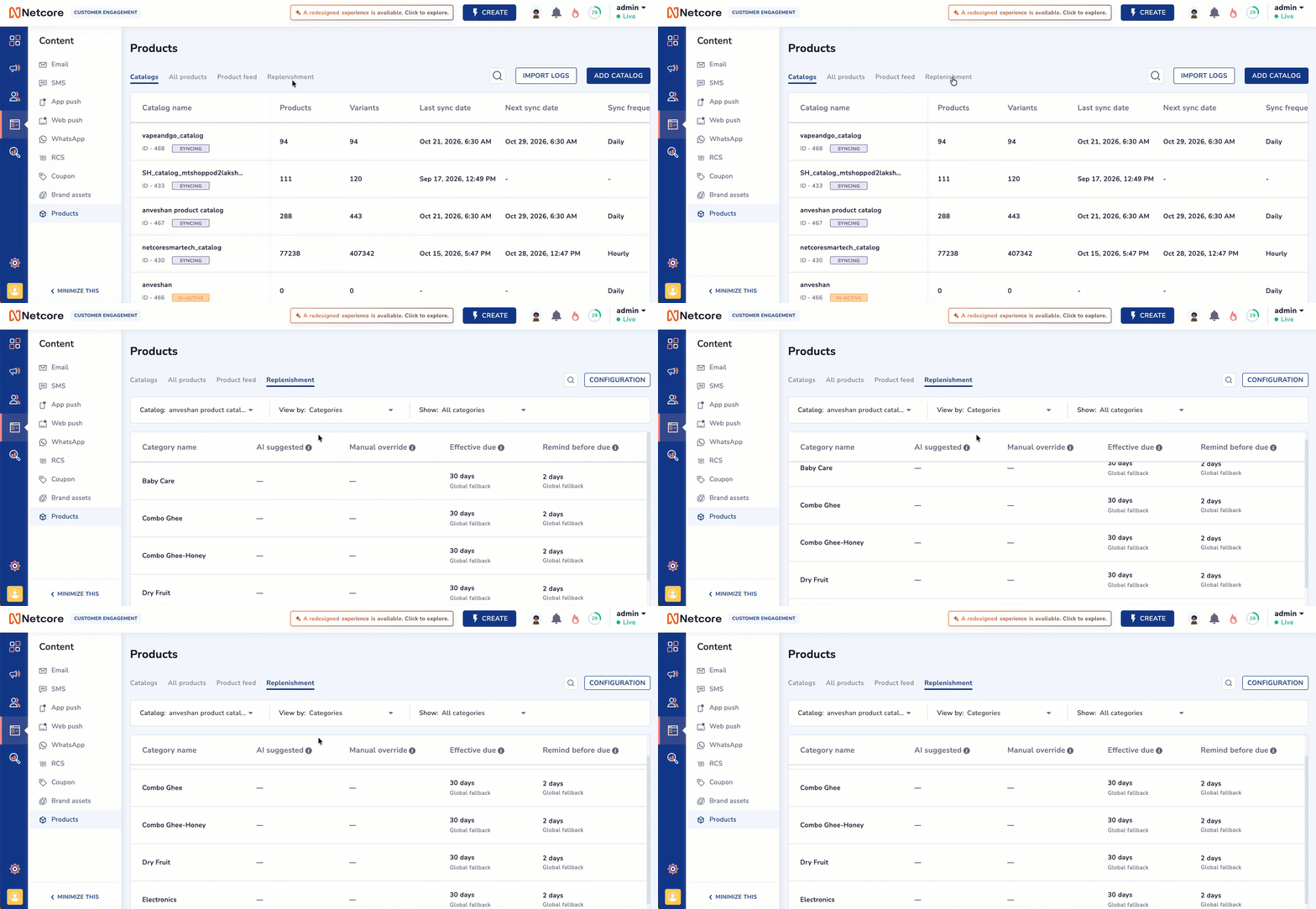
On the Replenishment tab, each row shows AI suggested, Manual override and Effective due (plus Remind before due).
| Column | Description |
|---|---|
| AI Suggested | The replenishment period suggested by Replenishment. |
| Manual Override | The period set through a custom rule. |
| Effective Due | The final replenishment period applied after evaluating customer behavior and configured rules. |
| Remind Before Due | The number of days before the expected replenishment date when the reminder is scheduled. |
Replenishment can use different signals depending on how much purchase history is available for a customer and product:
- When reliable customer-level behaviour is available, Netcore uses that customer's own repeat-purchase pattern. This is the most personalised signal.
- Whenreliable customer-level behaviour is not available, Replenishment falls back to recommendations or rules from the product hierarchy as below:
`Variant/SKU > Product Group > Subcategory > Category > Global fallback
The more specific level wins when more than one applies.
You can also set your own rule for a product or category, in two modes:
- Use as fallback : The customer's own behaviour still takes priority when it's available; your rule only fills the gap when it is not available.
- Give this rule priority over user behaviour: When your rule always wins for that product or category, regardless of what's known about the individual customer.
1. Manual Override is the period set by a custom rule.
2. Effective Dueis the final period applied after evaluating customer behavior and configured rules.
3. A Manual Override may not apply when reliable customer purchase history takes priority.
Configure Reminder Settings
Once the catalog is synced, select CONFIGURATION at the top of the Replenishment tab to set the fallback and reminder rules for that catalog.
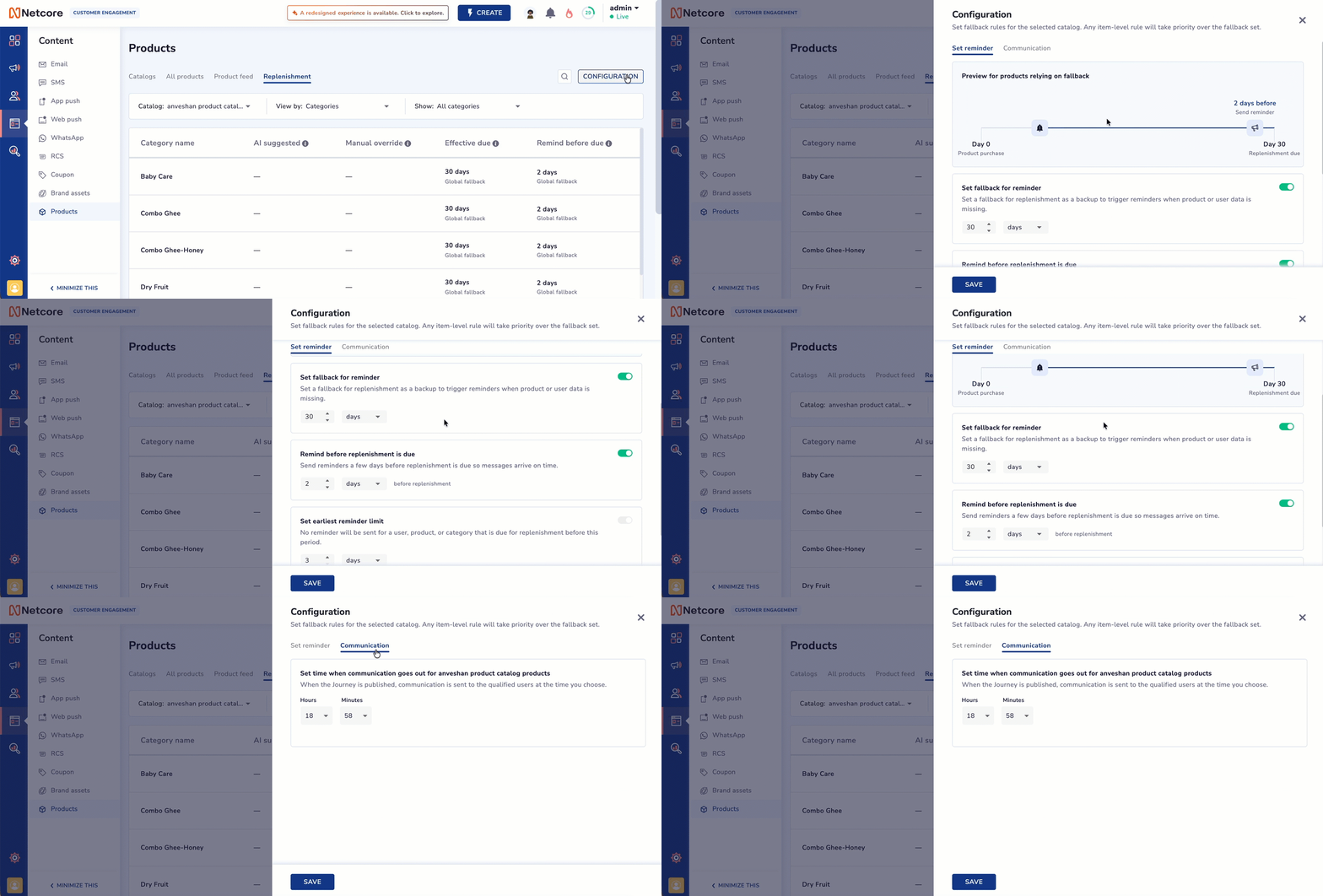
Set up Reminders for Replenishment
- Set reminder tab has below settings:
| Setting | Description | Example |
|---|---|---|
| Fallback for Reminder | Sets a backup replenishment period when there isn't enough product or customer data to predict one. | 30 days |
| Remind Before Replenishment Is Due | Sends the reminder a specified number of days before the expected replenishment date. | 2 days before |
| Earliest Reminder Limit |
| No reminders for products due in under 3 days |
Earliest Reminder Limit, with an exampleWith the limit set to 3 days:
Effective replenishment period Result 2 days Not eligible 3 days Eligible 10 days Eligible
- Communication: Choose the time of day (hours and minutes) replenishment communications go out for that catalog, once the Journey is published.
How Reminder Eligibility Works
- The Effective Replenishment period must meet the Minimum Eligible Replenishment Cycle configured in Earliest Reminder Limit.
- Remind Before should be shorter than the Effective Replenishment period.
- If an inherited Remind Before is longer than the Effective Replenishment period, the reminder is sent on the effective replenishment date. For Example: If the Effective Replenishment period is 5 days and the inherited Remind Before is 7 days, the reminder is sent on Day 5.
Create Replenishment Journey
Start by creating a new Journey or edit an existing one. Refer here to learn how to create a journey.
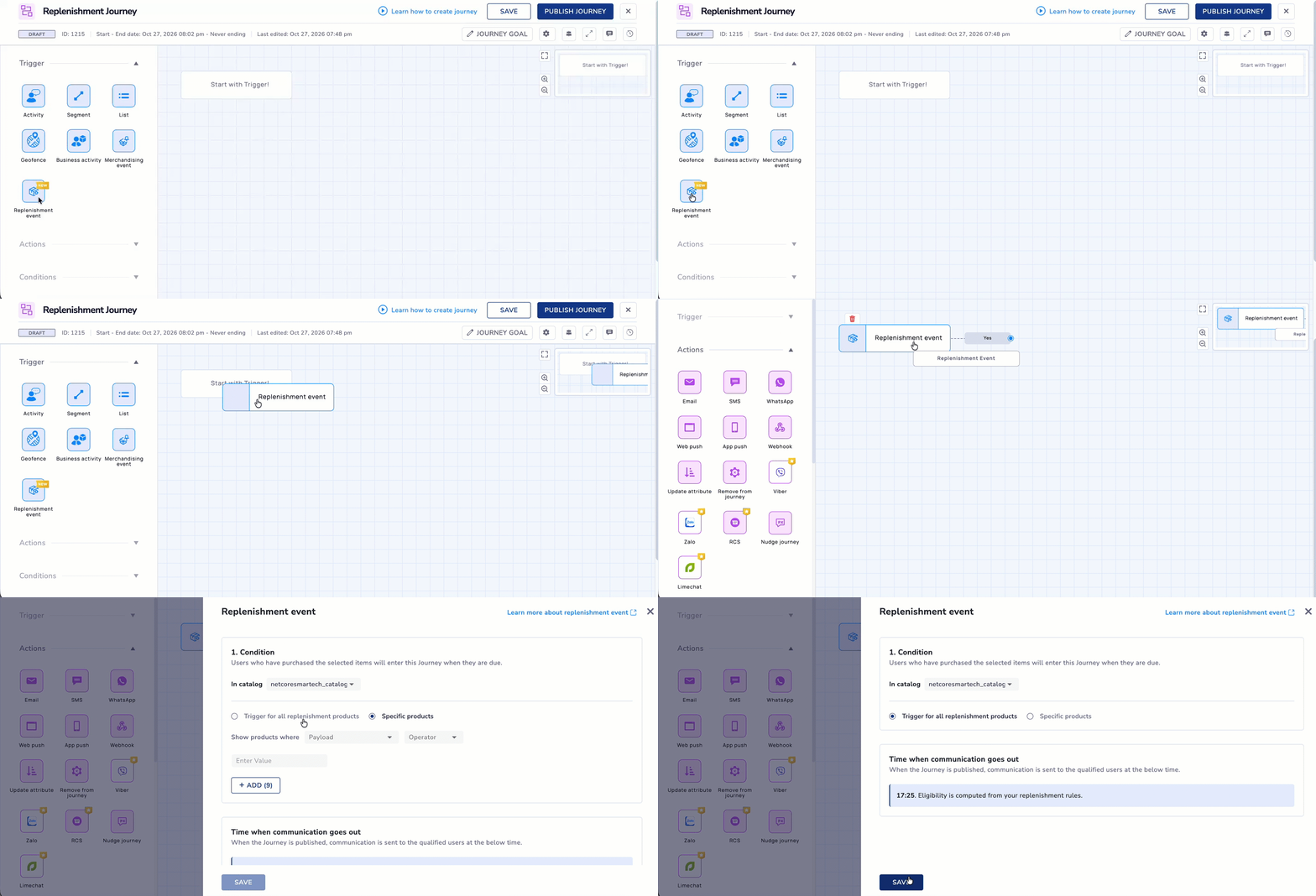
Create a journey using Replenishment event Trigger
- Drag and drop Replenishment trigger on to the Journey canvas.
- Select a catalog from In catalog dropdown.
- Add an Email action node to send personalized emails to users.
Set up the Email action node with all required details. Refer here to learn how to set up an Email action node. You can create new templates, edit existing ones, and send test emails directly from the journey canvas.
- Use the SEND TEST button to verify the email content, personalization, and configuration before activating the journey.
Refer here to know about the configurations in the SEND TEST email action node. - Publish Journey or Save it for later
Good to know: Out-of-stock products are not automatically excluded. Add a stock filter to the Journey to exclude unavailable products.
Use Replenishment in UCE
Start by creating a new template or editing an existing one. Refer here to know more how create a new Email template.
- Drag and drop Product block on to the main canvas.
- Choose Replenishment as the source.
- Customize the template by picking the product details to show (image, name, price, brand, and so on).
- Save, and use the template in your Replenishment Journey Email.
Updated about 16 hours ago